> ## Documentation Index
> Fetch the complete documentation index at: https://prismeai-legacy.mintlify.site/llms.txt
> Use this file to discover all available pages before exploring further.
# Platform Navigation
> Learn how to navigate the Prisme.ai interface and find what you need
The Prisme.ai platform offers a comprehensive set of features and products, organized in an intuitive interface. This guide will help you understand how to navigate the platform effectively and find what you need.
## Main Dashboard
When you log in to Prisme.ai, you'll land on the main dashboard, which serves as your central hub for accessing all platform features.
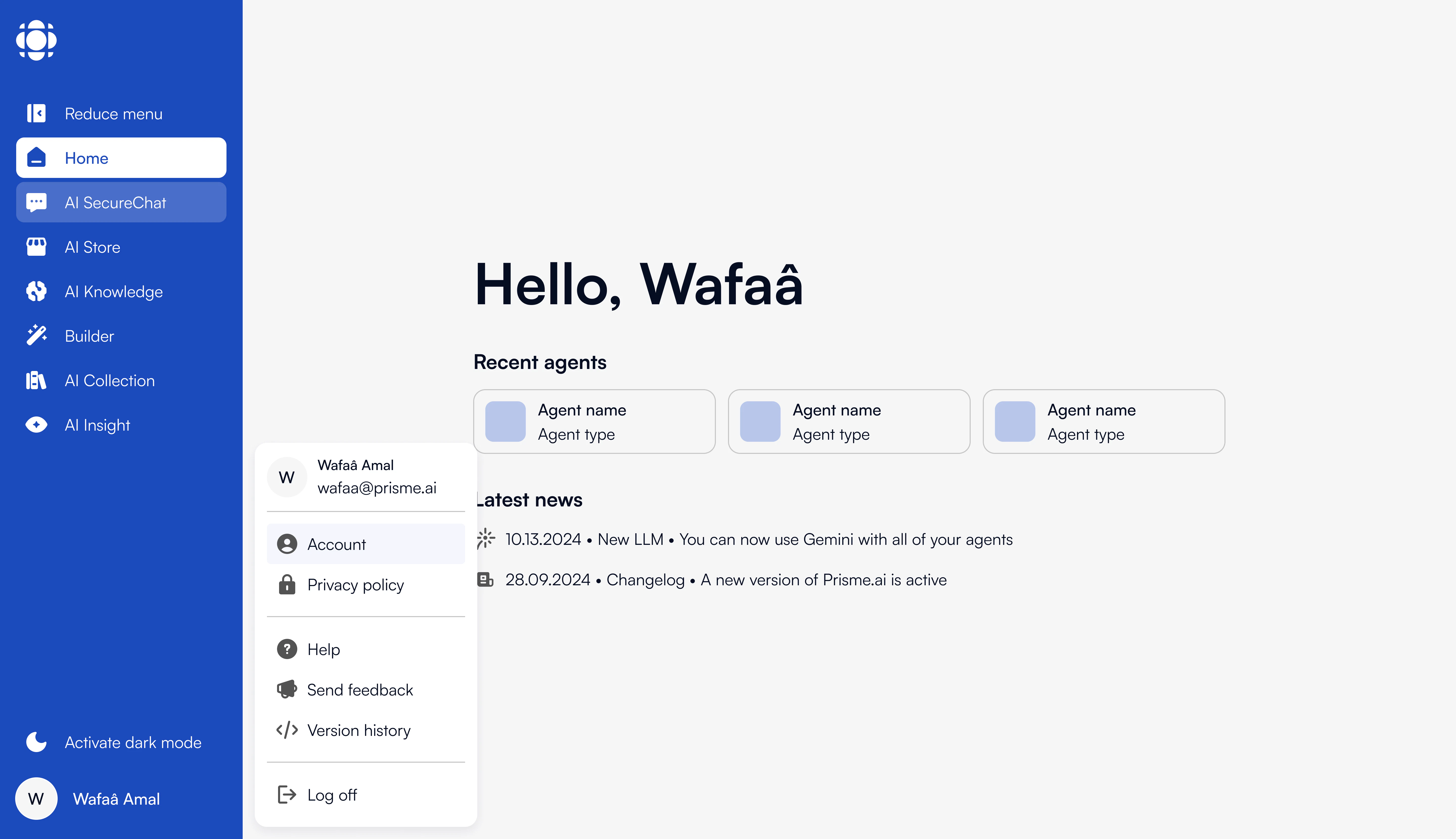 The dashboard includes:
2. **Product Navigation** - Quick access to all Prisme.ai products depending on your role
3. **Recent Activity** - Recently accessed agents and news
4. **Quick Stats** - Usage statistics and performance metrics
5. **Featured Content** - Highlighted resources and new features
## Navigation Structure
Prisme.ai's navigation is organized into several key areas:
### Side Navigation Menu
The dashboard includes:
2. **Product Navigation** - Quick access to all Prisme.ai products depending on your role
3. **Recent Activity** - Recently accessed agents and news
4. **Quick Stats** - Usage statistics and performance metrics
5. **Featured Content** - Highlighted resources and new features
## Navigation Structure
Prisme.ai's navigation is organized into several key areas:
### Side Navigation Menu
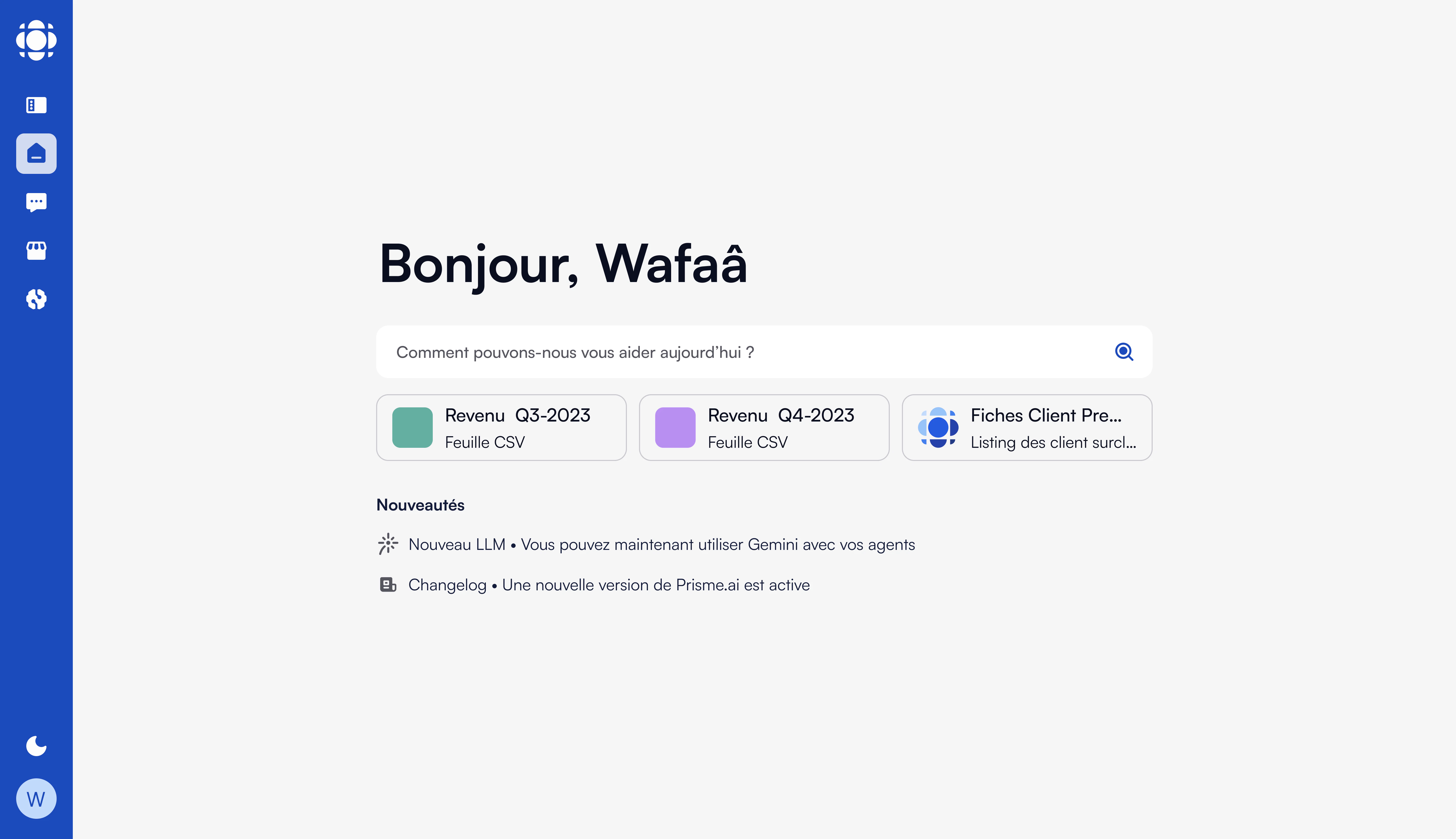 The side navigation bar includes:
* **Logo** - Click to return to the dashboard
* **Home** - Global home across the platform, and Access system notifications and
* **AI Secure Chat** - Your organization Secure Chat Agent
* **Products** - Your organization products depending on your ole
* **User** - Access your account, help, feedback, releases note
## Product Navigation
Each Prisme.ai product has its own dedicated navigation and interface. Here's a quick overview of how to navigate each product:
The side navigation bar includes:
* **Logo** - Click to return to the dashboard
* **Home** - Global home across the platform, and Access system notifications and
* **AI Secure Chat** - Your organization Secure Chat Agent
* **Products** - Your organization products depending on your ole
* **User** - Access your account, help, feedback, releases note
## Product Navigation
Each Prisme.ai product has its own dedicated navigation and interface. Here's a quick overview of how to navigate each product:
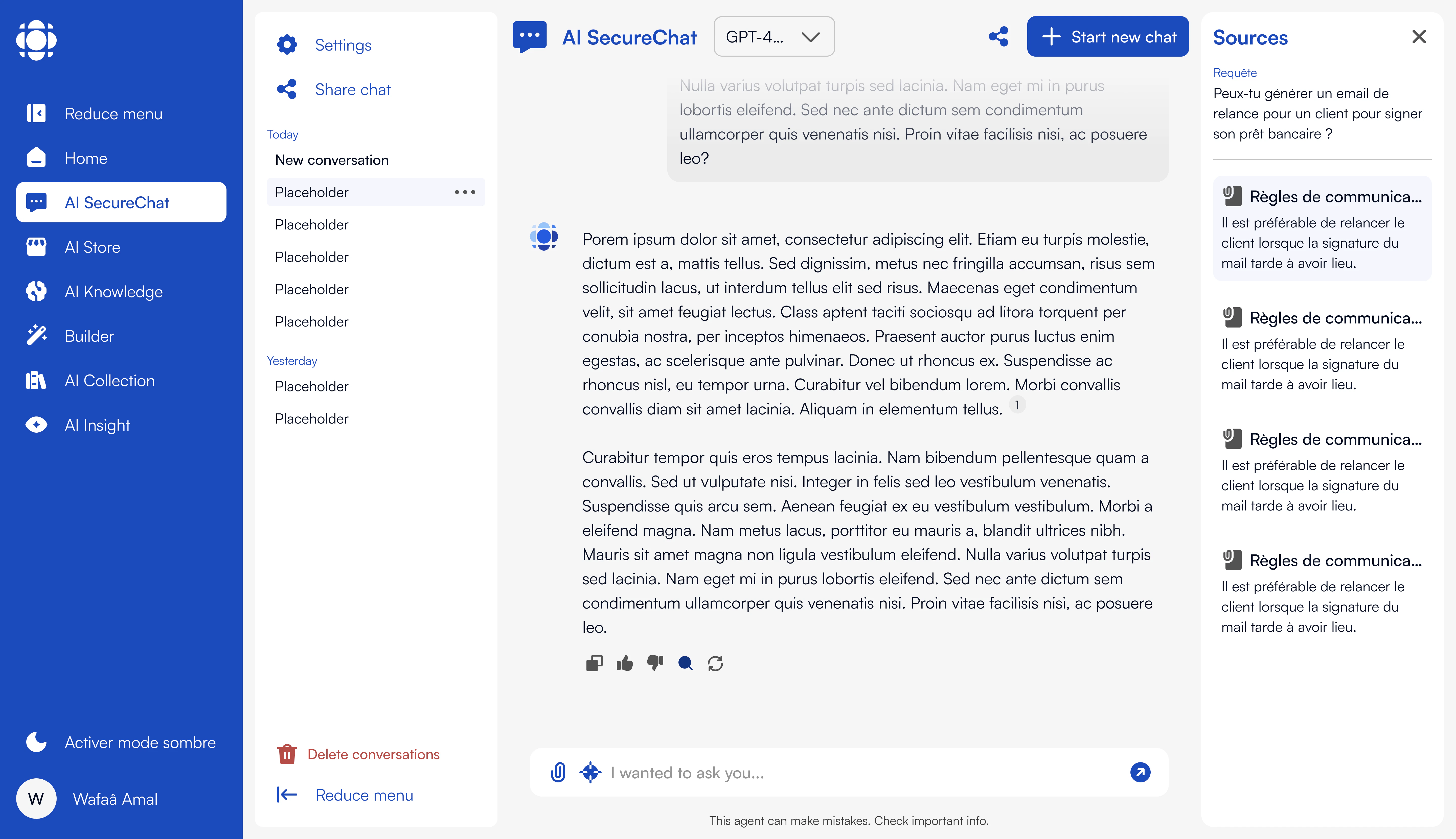 Key areas include:
* **Chat Interface** - Main area for conversations
* **Conversation History** - Access previous chats
* **Settings** - Configure chat behavior
* **Document Upload** - Add documents to your conversation
Key areas include:
* **Chat Interface** - Main area for conversations
* **Conversation History** - Access previous chats
* **Settings** - Configure chat behavior
* **Document Upload** - Add documents to your conversation
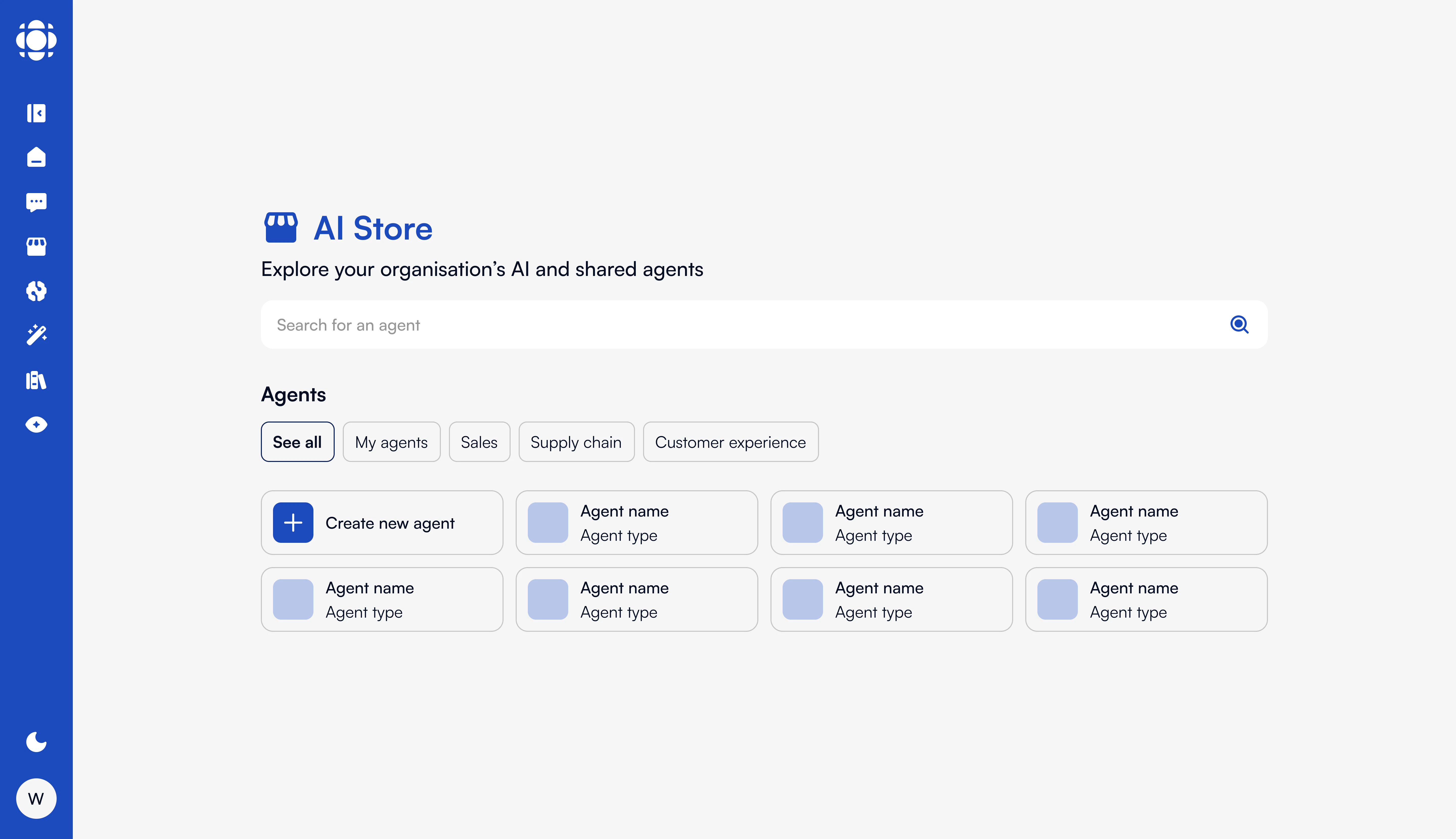 Key areas include:
* **Agent Catalog** - Browse available agents
* **Categories** - Filter agents by category
* **My Agents** - Access agents you've created or customized
* **Agent Details** - View and configure specific agents
Key areas include:
* **Agent Catalog** - Browse available agents
* **Categories** - Filter agents by category
* **My Agents** - Access agents you've created or customized
* **Agent Details** - View and configure specific agents
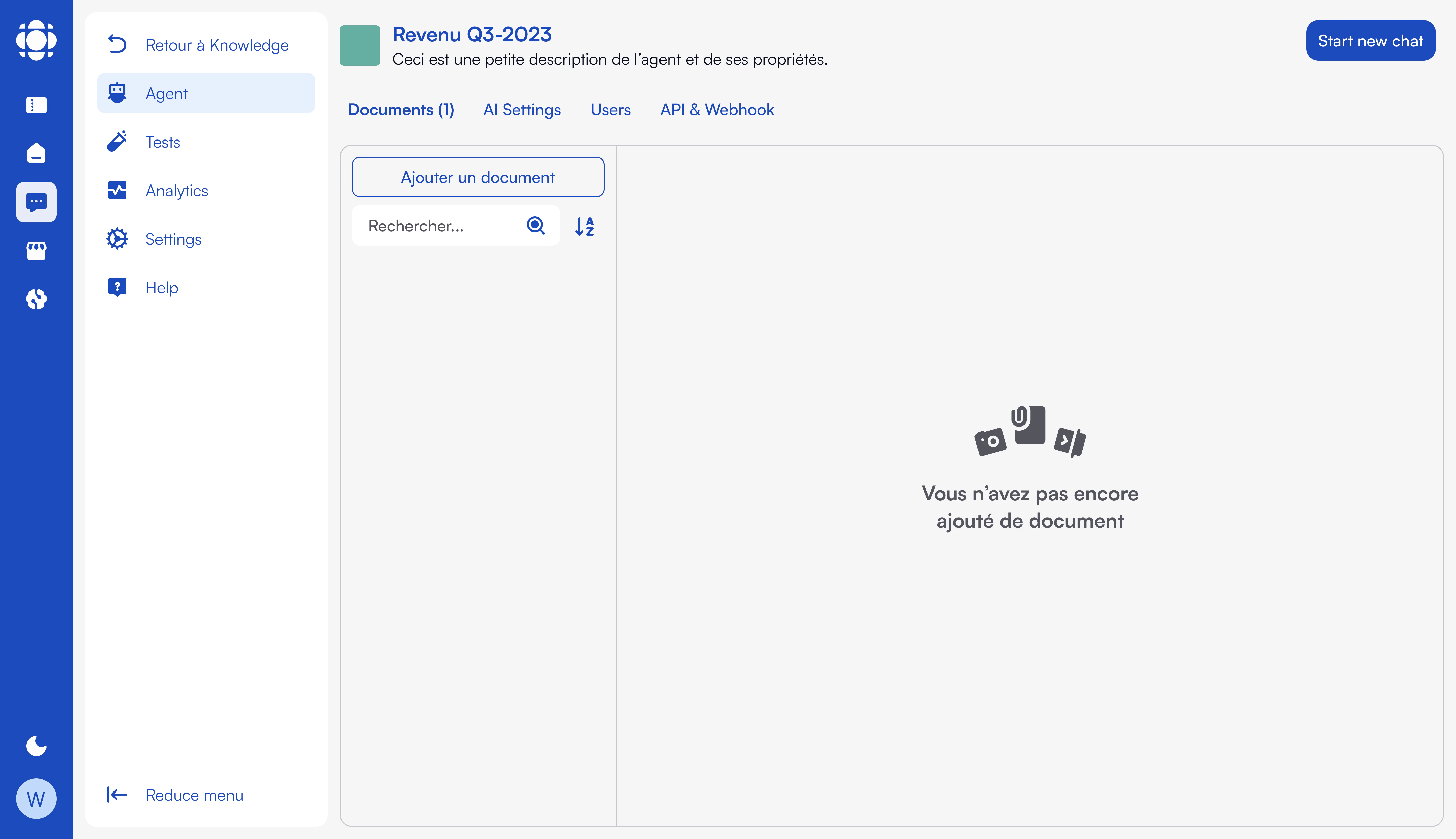 Key areas include:
* **Knowledge Bases** - Manage your knowledge bases
* **Documents** - Upload and manage documents
* **Agent Integration** - Connect knowledge bases to agents
* **Testing** - Test knowledge retrieval
Key areas include:
* **Knowledge Bases** - Manage your knowledge bases
* **Documents** - Upload and manage documents
* **Agent Integration** - Connect knowledge bases to agents
* **Testing** - Test knowledge retrieval
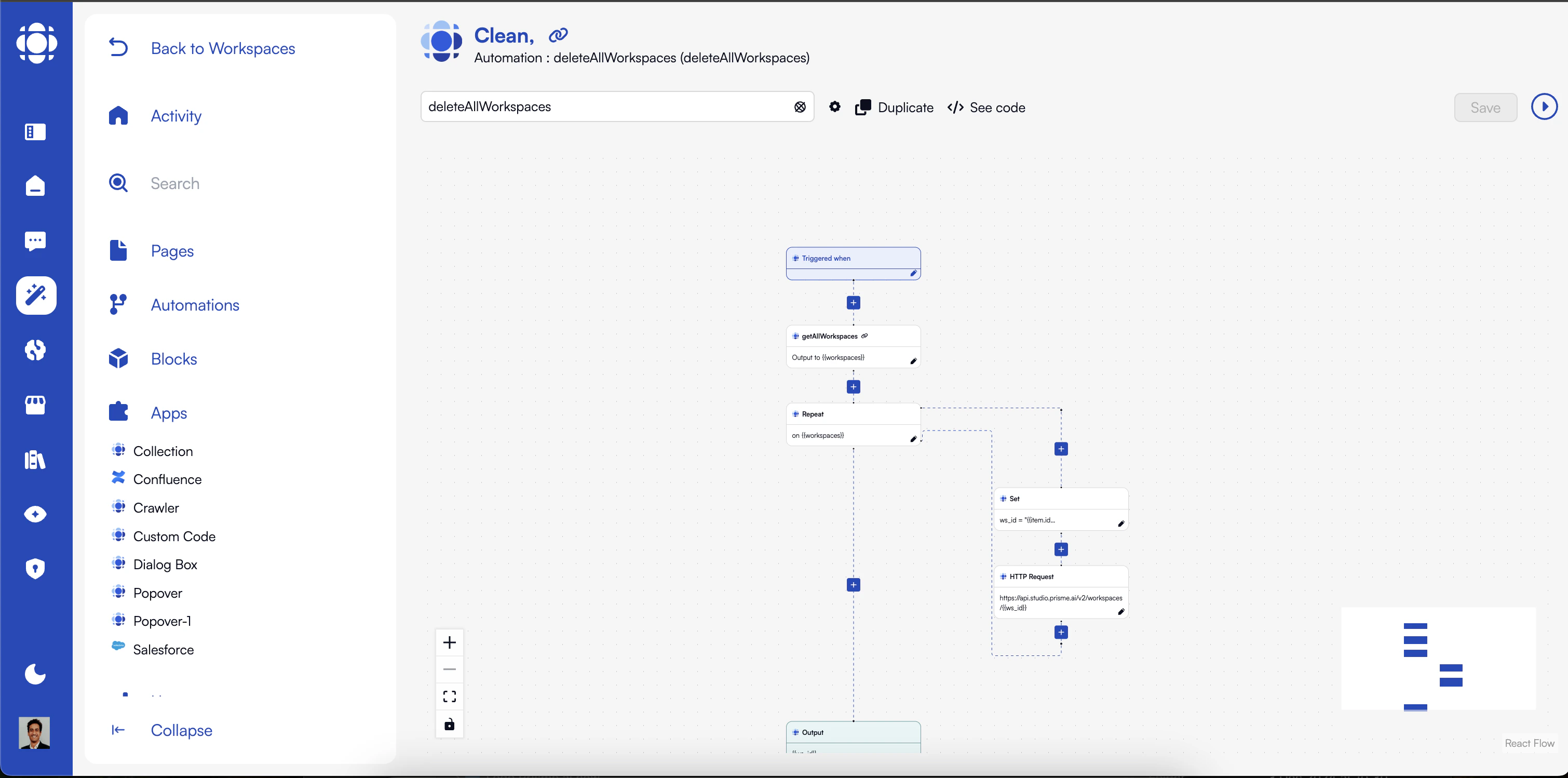 Key areas include:
* **Activity** - Manage your workspace activity
* **Pages** - Design UI interfaces
* **Automations** - Configure workflows
* **Blocks** - Access building blocks
* **Apps** - Set up your own marketplace
* **Usage** - Access your workspace usage
* **Settings** - Access your workspace Settings
## Mobile Navigation
On smaller screens, the navigation adapts to a more compact format:
Key areas include:
* **Activity** - Manage your workspace activity
* **Pages** - Design UI interfaces
* **Automations** - Configure workflows
* **Blocks** - Access building blocks
* **Apps** - Set up your own marketplace
* **Usage** - Access your workspace usage
* **Settings** - Access your workspace Settings
## Mobile Navigation
On smaller screens, the navigation adapts to a more compact format:
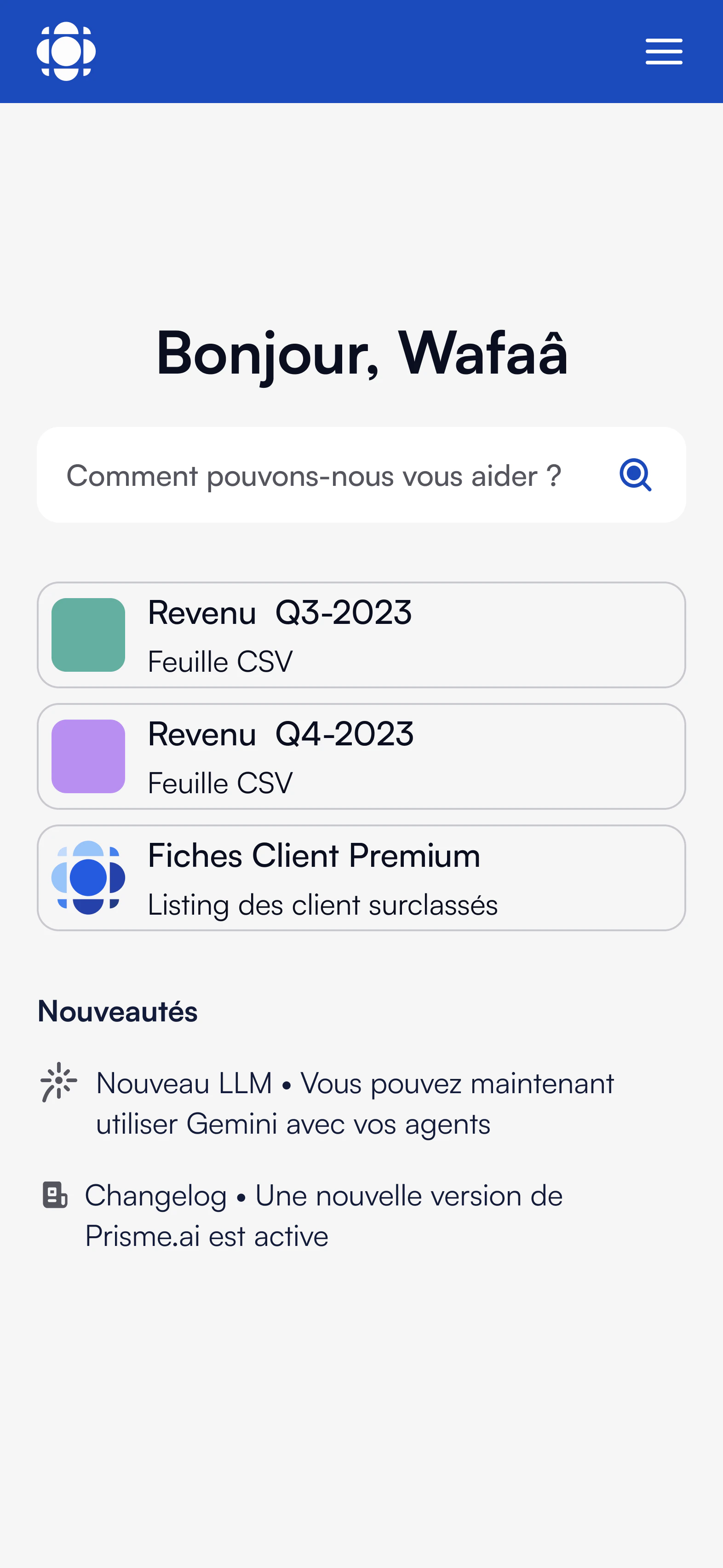 Key differences in mobile navigation:
* Main menu collapses into a hamburger menu
* Product navigation appears at the bottom of the screen
* Some advanced features may be reorganized for better mobile access
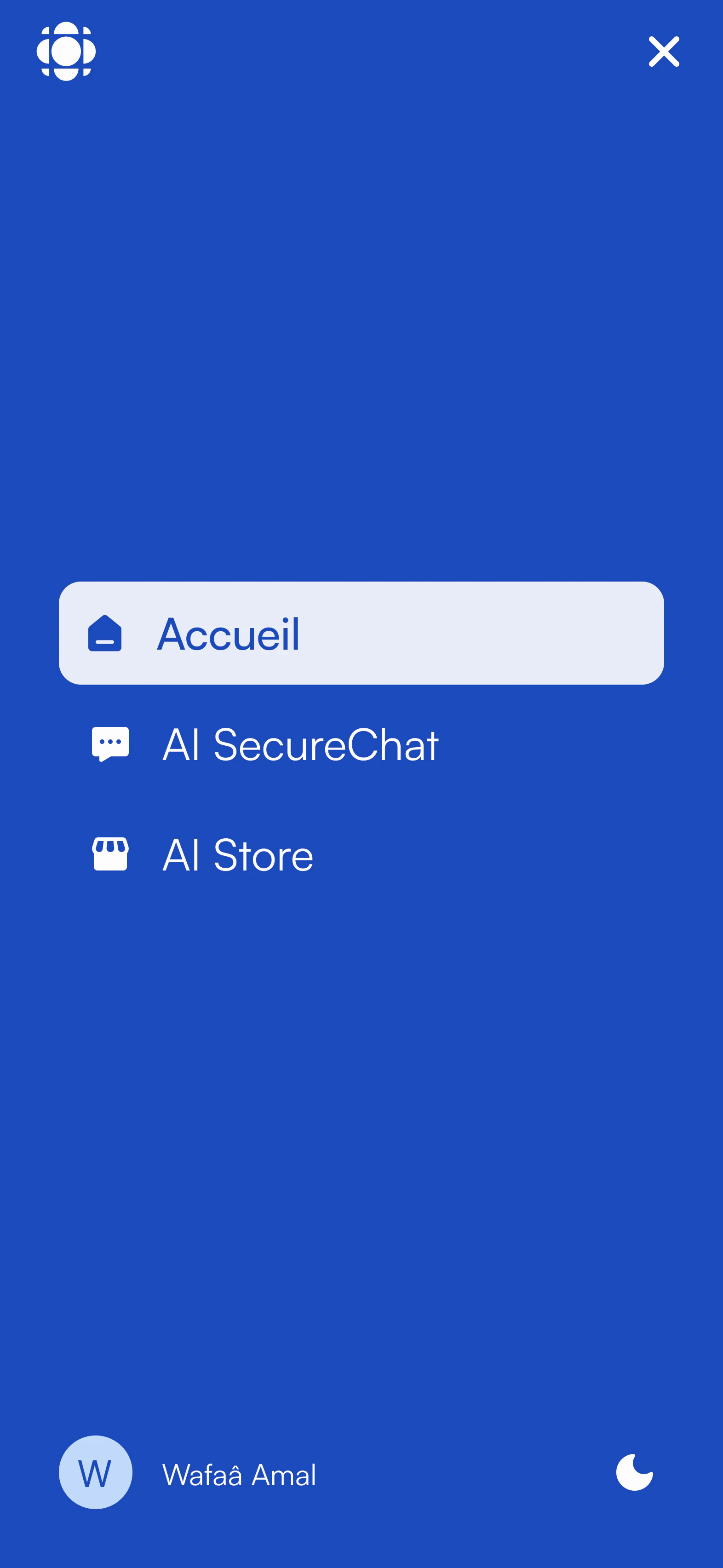
Key differences in mobile navigation:
* Main menu collapses into a hamburger menu
* Product navigation appears at the bottom of the screen
* Some advanced features may be reorganized for better mobile access
 ## Next Steps
Now that you understand how to navigate the Prisme.ai platform, you're ready to explore its capabilities:
Discover common applications of Prisme.ai
Explore the Prisme.ai product suite in detail
## Next Steps
Now that you understand how to navigate the Prisme.ai platform, you're ready to explore its capabilities:
Discover common applications of Prisme.ai
Explore the Prisme.ai product suite in detail